
Does RAM Affect FPS? Gaming Performance Guide
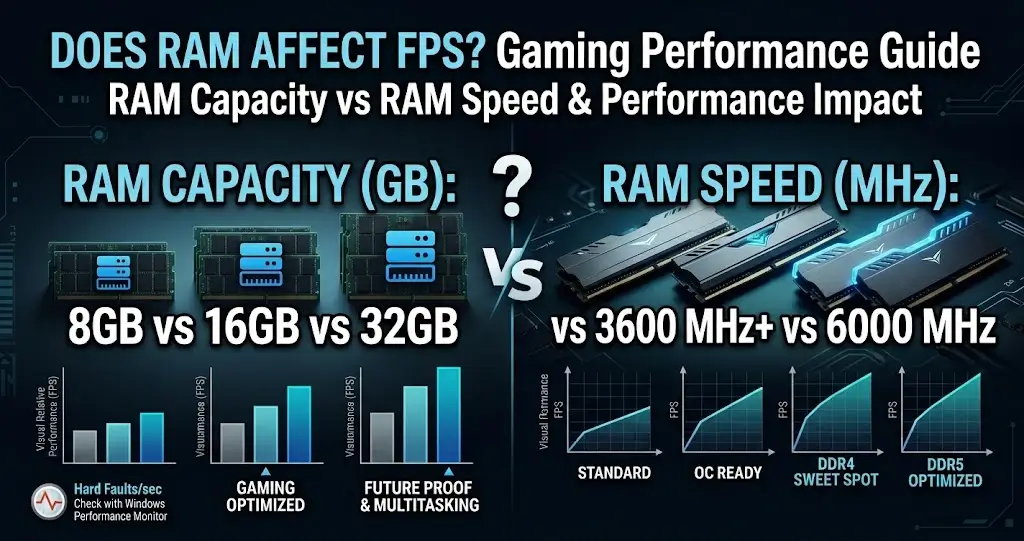
RAM affects FPS in two distinct ways: capacity and speed. Running too little RAM causes performance to crash in modern games. Running RAM below its rated speed adds CPU-side latency that costs frames — especially on AMD Ryzen systems. Both are fixable, and understanding which one applies to your system tells you whether you need more RAM, faster RAM, or neither.
Quick Answer
Yes — RAM affects FPS in two ways. Insufficient RAM capacity (under 16GB in 2026) causes severe FPS drops and stuttering in modern games. RAM running below its rated speed (XMP/EXPO not enabled) costs 3–15% FPS depending on your platform, most noticeably on AMD Ryzen systems. Both issues are fixable for free before any hardware upgrade is needed.
Does RAM Affect FPS? The Two-Part Answer
RAM affects gaming performance through two separate mechanisms that are often confused:
- RAM capacity (how much you have): When a game needs more RAM than your system has, it starts using your storage drive as overflow — called "paging." Storage is thousands of times slower than RAM, so FPS drops severely and stuttering becomes constant. This is a hard performance floor.
- RAM speed (how fast it runs): RAM running at JEDEC default speeds instead of its rated XMP/EXPO speed adds latency to every CPU memory operation. On AMD Ryzen, this directly slows the Infinity Fabric interconnect — costing meaningful FPS in gaming without any visible symptom other than lower frame rates than expected.
Both affect FPS differently: capacity affects whether games run at all, speed affects how efficiently the CPU can feed the GPU.
How Much RAM Do You Need for Gaming in 2026?
| RAM Amount | Gaming Situation | Recommended? |
|---|---|---|
| 8GB | Severe FPS drops in modern AAA titles, frequent stuttering, out of memory errors in demanding games | ❌ Not enough in 2026 |
| 16GB | Handles most current games well — minimum recommended for gaming in 2026 | ✅ Minimum recommended |
| 32GB | Future-proof for gaming — no capacity issues in any current title, also covers background apps and streaming | ✅ Recommended for longevity |
| 64GB+ | Overkill for pure gaming — useful for content creation, 3D rendering, or heavy multitasking alongside gaming | 🟡 Only if needed |
8GB vs 16GB Gaming Performance
The gap between 8GB and 16GB has widened significantly with modern game releases. Titles like Hogwarts Legacy, Star Wars Jedi: Survivor, and The Last of Us Part I regularly use 12–14GB of system RAM during gameplay. With 8GB of RAM, Windows and background processes consume 2–4GB before the game even launches — leaving the game with 4–6GB of usable RAM, which causes constant paging to storage and severe stuttering.
Upgrading from 8GB to 16GB in a system that was hitting the capacity limit often delivers larger FPS gains than upgrading the CPU or GPU — because it removes the performance floor that was limiting everything else.
16GB vs 32GB Gaming Performance
The performance difference between 16GB and 32GB is smaller than 8GB to 16GB in most current titles. At 16GB, the system is not paging for most games, so the benefit of 32GB is primarily future-proofing and headroom for multitasking. If you stream while gaming, run Discord, a browser, and the game simultaneously, 32GB becomes practically worthwhile. For pure single-game gaming, 16GB is sufficient for virtually all current titles.
Does RAM Speed Affect FPS?
Yes — RAM speed affects FPS, and the impact varies significantly by platform:
| Platform | RAM Speed Impact on FPS | Why |
|---|---|---|
| AMD Ryzen (AM5) | 5–15% in memory-sensitive titles | Infinity Fabric frequency is tied to RAM speed — slower RAM directly slows core-to-core communication |
| AMD Ryzen (AM4) | 3–10% in memory-sensitive titles | Same Infinity Fabric relationship — significant on Ryzen 5000 and older |
| Intel (12th–14th gen) | 2–8% in memory-sensitive titles | Less directly tied to memory latency — still measurable in CPU-bound scenarios |
| Intel Core Ultra | 2–6% typical | Architecture is less memory-latency sensitive than AMD |
The fix: enable XMP (Intel) or EXPO (AMD) in your BIOS. This is a free one-setting change that ensures your RAM runs at the speed printed on the label rather than the conservative JEDEC default all systems fall back to at first boot. See our guide on how to enable XMP and EXPO for faster RAM for the exact steps by motherboard brand.
DDR4 vs DDR5: Does It Affect Gaming FPS?
| Memory Type | Typical Gaming FPS Difference | Platform |
|---|---|---|
| DDR4 (3200–3600MHz) | Baseline | AM4 (Ryzen 5000), Intel 12th gen LGA1700 |
| DDR5 (6000MHz) | +3–8% vs DDR4 baseline in gaming | AM5 (Ryzen 7000/9000), Intel 12th gen+ LGA1700, LGA1851 |
| DDR5 (6400MHz+) | +5–12% vs DDR4 baseline in gaming | AM5 and Intel DDR5 platforms — diminishing returns past 6400 |
The difference between DDR4 and DDR5 is real but smaller than most people expect for pure gaming. The bigger impact comes from running whichever type you have at its rated speed via XMP/EXPO — an improperly configured DDR5 kit at 4800MHz will often perform worse than a well-configured DDR4 kit at 3600MHz.
Does RAM Amount Matter More Than RAM Speed?
It depends on where your system currently stands:
- If you have 8GB: Capacity matters far more — upgrading to 16GB will have a larger impact than any RAM speed change. Speed optimizations on an 8GB system are largely wasted when the system is already paging to storage.
- If you have 16GB+ but XMP/EXPO is disabled: Speed matters now — enabling XMP/EXPO is the highest-impact free change available.
- If you have 16GB+ with XMP/EXPO enabled: Neither capacity nor speed is your bottleneck. Check CPU and GPU balance instead — use the bottleneck calculator to identify which component is actually limiting your FPS.
RAM as a PC Bottleneck
RAM can create a PC bottleneck in two scenarios. First, when capacity is exceeded: the system pages to storage, which is so slow it bottlenecks everything regardless of how fast the CPU and GPU are. Second, when RAM runs at JEDEC default speeds: the CPU cannot retrieve and process game data as fast as it could with properly configured memory, which adds latency that shows up as lower FPS — particularly in games sensitive to memory bandwidth and latency.
RAM-related bottlenecks are often misdiagnosed as CPU bottlenecks because the symptoms are similar: lower-than-expected FPS, poor 1% lows, and stuttering. The key difference is that RAM issues are almost always fixable for free (enable XMP/EXPO) or at low cost (upgrade to 16GB) before any CPU or GPU upgrade is justified. For a full breakdown of what causes CPU bottlenecks and how RAM factors in, see our guide on how to fix a CPU bottleneck.
How to Check If RAM Is Limiting Your FPS
- Open Task Manager → Performance → Memory. Check the Speed value — if it matches your RAM's rated frequency (printed on the label), XMP/EXPO is enabled. If it shows a lower number (e.g., 2133 or 4800 on a DDR5 kit), XMP/EXPO is not enabled.
- During gameplay, watch RAM usage in Task Manager or MSI Afterburner. If usage consistently hits 90–100% of your installed RAM, capacity is the bottleneck.
- Check for paging: in Windows Resource Monitor (search "Resource Monitor" in Start), the Memory tab shows "Hard Faults/sec" — if this number spikes during gameplay, the system is actively paging to storage because RAM is full.
RAM FPS Impact by Game Type
| Game Type | RAM Capacity Need | RAM Speed Sensitivity | Examples |
|---|---|---|---|
| Esports / Competitive | Low — 8GB often sufficient | Medium — noticeable on Ryzen | CS2, Valorant, Fortnite, Rocket League |
| Open World AAA | High — 16GB minimum, 32GB safer | Medium | Cyberpunk 2077, RDR2, Hogwarts Legacy |
| Strategy / Simulation | High — complex AI uses significant RAM | High — CPU-heavy workloads sensitive to memory latency | Total War, Cities Skylines 2, Stellaris |
| Horror / Linear AAA | Medium — 16GB comfortable | Low to Medium | Alan Wake 2, Resident Evil 4 Remake |
| Streaming + Gaming | Very High — 32GB recommended | Medium | Any game while streaming/recording |
FAQ
Does RAM affect FPS in gaming?
Yes — in two ways. Insufficient RAM capacity causes severe FPS drops and stuttering when games exceed available memory. RAM running below its rated speed (XMP/EXPO not enabled) costs 3–15% FPS depending on your platform, most significantly on AMD Ryzen systems where memory speed is tied to the Infinity Fabric.
Does RAM speed matter for gaming?
Yes, particularly on AMD Ryzen platforms. Running RAM at its rated speed via XMP or EXPO can improve gaming FPS by 3–15% compared to JEDEC default speeds. On Intel systems, the impact is smaller but still measurable in CPU-bound scenarios. Enabling XMP/EXPO is a free performance upgrade that takes under two minutes in BIOS.
Is 8GB RAM enough for gaming in 2026?
No — 8GB is no longer sufficient for modern gaming in 2026. Current AAA titles regularly use 12–14GB of system RAM, leaving an 8GB system with insufficient headroom after Windows and background processes take their share. This causes stuttering, FPS drops, and out-of-memory errors. 16GB is the minimum recommended amount for gaming in 2026.
Will adding more RAM increase FPS?
Only if RAM capacity is currently the bottleneck. If you have 8GB and are playing modern games, upgrading to 16GB will likely deliver significant FPS improvement. If you already have 16GB or more, adding more RAM will not improve FPS unless you are consistently hitting 100% memory usage during gameplay.
Does RAM affect FPS more than CPU or GPU?
Not typically — but a RAM bottleneck can artificially limit both CPU and GPU performance, making it look like those components are the problem. If your system is paging to storage due to insufficient RAM, fixing the RAM issue first is the most efficient step before evaluating CPU or GPU upgrades.
How do I know if RAM is bottlenecking my PC?
Check Task Manager during gameplay — if RAM usage hits 90–100% and FPS drops coincide, capacity is the issue. If RAM usage is normal but speed is below rated (check Task Manager → Performance → Memory → Speed), enable XMP or EXPO in BIOS. Use a bottleneck calculator to confirm whether the CPU or GPU is the actual limiting factor once RAM is properly configured.
Conclusion
RAM affects FPS through capacity and speed — both are worth checking before spending money on CPU or GPU upgrades. If you have 8GB, upgrade to 16GB first. If you have 16GB or more but XMP or EXPO is not enabled, enabling it in BIOS is the fastest free FPS improvement available. Once RAM capacity and speed are properly configured, use the bottleneck calculator to check whether your CPU and GPU pairing is balanced at your target resolution — that is usually where the next upgrade opportunity lies.