
What Is a PC Bottleneck? Meaning, Causes & How to Fix It
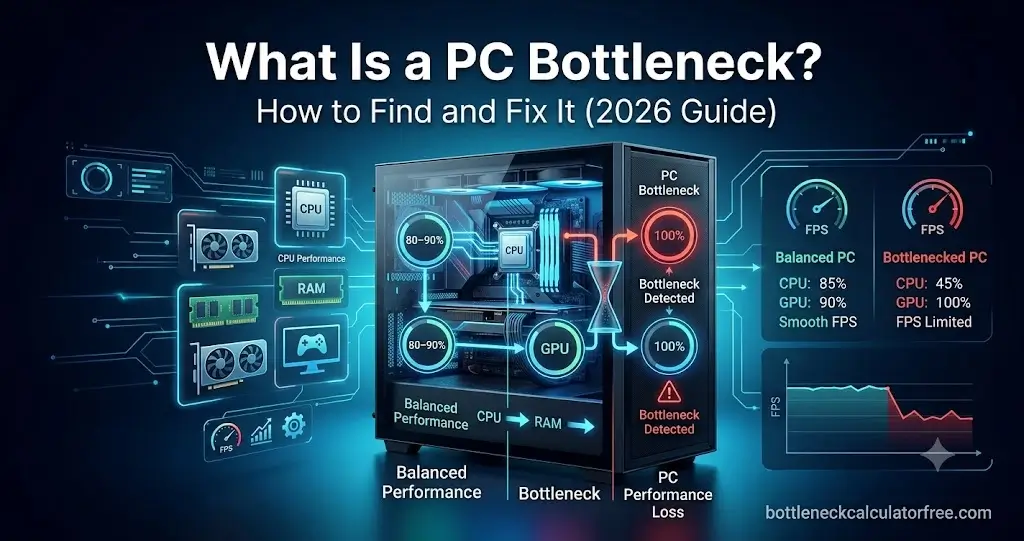
A PC bottleneck happens when one component in your computer — usually the CPU or GPU — limits the performance of the rest of the system, so you do not get the frame rates or speed your hardware should deliver. In most gaming setups, this shows up as low FPS despite having a powerful graphics card, or a GPU that never reaches full usage because the processor cannot keep up. Identifying which part is holding you back is the first step before spending money on any upgrade.
Quick Answer
A PC bottleneck is when one component — typically the CPU or GPU — cannot keep pace with the rest of your system, capping your overall performance. Common signs:
- Low GPU usage paired with high CPU usage, or the reverse
- Lower FPS than your hardware should produce at a given resolution
- Stuttering or inconsistent frame delivery during gameplay
The fastest way to confirm which part is limiting you: run your CPU and GPU through the bottleneck calculator for a resolution-specific estimate before upgrading anything.
What Does "Bottleneck" Mean on a PC?
The term comes from the shape of a bottle — liquid can only flow as fast as the narrowest point allows. In a PC, the "narrowest point" is whichever component cannot process data fast enough to keep the rest of the system running at full capacity. That component caps performance for everything downstream, regardless of how capable the other parts are.
In gaming, the bottleneck is almost always the CPU or the GPU — but RAM capacity, storage speed, and background software can amplify the imbalance and make symptoms worse than the hardware mismatch alone would suggest.
What Causes a PC Bottleneck?
Most PC bottlenecks come from mismatched hardware — pairing components from significantly different performance tiers or generations. Common causes include:
- CPU-GPU mismatch: A much faster GPU paired with an older processor, or a high-end CPU paired with a budget graphics card
- Resolution shift: A build balanced at 1080p often becomes GPU-bottlenecked when moving to 1440p or 4K, because rendering demand increases faster than CPU demand
- Insufficient RAM: Low RAM capacity (4–8 GB) starves both CPU and GPU, causing performance drops even when the processors themselves are adequate
- Thermal throttling: Poor cooling causes CPUs or GPUs to reduce their clock speeds under sustained load, mimicking a hardware bottleneck
- Outdated drivers or background software: These consume CPU and memory resources that would otherwise feed the GPU
CPU Bottleneck vs GPU Bottleneck
The most important distinction is which component is limiting you — because the fix for each is completely different, and upgrading the wrong part wastes money.
| Type | Main Sign | Most Common At | Primary Fix |
|---|---|---|---|
| CPU Bottleneck | GPU usage low, CPU usage high or maxed on specific cores | 1080p, high FPS targets, esports, simulation games | Close background apps, lower CPU-heavy settings, CPU upgrade |
| GPU Bottleneck | GPU usage near 95–100%, CPU has clear headroom | 1440p, 4K, ray tracing, AAA titles at high settings | Enable upscaling, lower GPU-heavy settings, GPU upgrade |
For a deeper look at each type, see what a CPU bottleneck actually is and what a GPU bottleneck actually is — both cover symptoms, causes, and fixes in detail.
How Resolution Affects Bottlenecks
Resolution is the single biggest variable that shifts which component becomes the bottleneck:
- 1080p: GPU renders frames faster at lower pixel counts — CPU is more commonly the limiting factor, especially at high refresh rate targets
- 1440p: GPU workload increases significantly — the balance shifts toward GPU bottlenecks in most systems
- 4K: GPU is almost always the bottleneck — rendering 4K frames fully loads most graphics cards regardless of CPU tier
This is why the same PC build can be CPU-bottlenecked in one game and GPU-bottlenecked in another, or CPU-bottlenecked at 1080p and GPU-bottlenecked at 4K. Bottlenecks are always workload-specific, not fixed properties of a hardware combination.
How to Check for a PC Bottleneck
You do not need to guess which component is holding you back. The fastest method: open MSI Afterburner and monitor CPU per-core usage and GPU utilization simultaneously during real gameplay. If GPU sits near 95–100% while CPU has headroom, the GPU is the limit. If CPU cores are maxed while GPU stays below 85%, the CPU is limiting performance.
Confirm it with the resolution drop test — lower your resolution significantly and see if FPS increases noticeably. A large FPS jump means GPU was the bottleneck. Little change means the CPU is the ceiling regardless of GPU load. For the complete step-by-step monitoring guide, see how to check a PC bottleneck.
How to Fix a PC Bottleneck
Not every bottleneck requires new hardware. Start with these free changes before planning an upgrade:
- Close background applications competing for CPU and memory resources
- Adjust in-game settings to shift load away from the weaker component — lower CPU-heavy settings (crowd density, draw distance) if CPU-limited; enable upscaling (DLSS, FSR, XeSS) if GPU-limited
- Enable XMP/EXPO memory profiles in BIOS — running RAM below rated speed adds unnecessary CPU overhead
- Update GPU drivers and motherboard chipset drivers
- Check temperatures — thermal throttling produces identical symptoms to a hardware bottleneck
If free fixes are not enough, upgrade the specific component that is actually limiting performance — not the one that looks more exciting or more expensive.
Is a PC Bottleneck Always a Problem?
No. A bottleneck simply means one component is the current limiting factor — it does not mean anything is broken or that an upgrade is urgent. If your system is already delivering the FPS and frame pacing you need for the games you play, there is no practical reason to act on a bottleneck even if one technically exists.
The 0–9% bottleneck range is considered balanced for most builds. A 10–20% bottleneck is mild and often addressable with free settings changes. Only past 20–25% does the mismatch typically cause noticeable performance waste that hardware changes would meaningfully fix.
Frequently Asked Questions
What is a PC bottleneck in simple terms?
It is when one component — usually the CPU or GPU — cannot keep up with the rest of your system, limiting your overall performance. Even with a powerful graphics card, a weak processor can cap your frame rates, and the reverse is also true.
What does bottlenecking mean on a PC?
Bottlenecking means one part of your PC is slowing down the rest. The weakest component sets the performance ceiling for the whole system — other parts sit idle waiting for it, so their full capability goes unused.
How do I know if my CPU or GPU is the bottleneck?
Monitor both components simultaneously during real gameplay. If GPU usage sits near 100% while CPU has room to spare, the GPU is the bottleneck. If individual CPU cores are maxed while GPU stays below 85%, the processor is the limiting factor. Dropping resolution significantly and watching how FPS changes confirms which one it is.
Is a bottleneck the same thing as a faulty component?
No. A bottleneck is an imbalance between components, not a defect. A perfectly healthy CPU can bottleneck an excellent GPU simply because it is not fast enough to keep up at a given resolution and FPS target. Hardware damage and bottlenecking are separate issues.
Does a PC bottleneck always mean I need a new PC?
No. Many bottlenecks are reduced through settings adjustments, driver updates, memory profile configuration, or better cooling before any hardware upgrade is needed. A single targeted upgrade to the weaker component is usually enough once you confirm which part is actually limiting you.
How accurate is a bottleneck calculator?
A bottleneck calculator gives a reliable planning estimate based on relative hardware performance for your chosen resolution and settings. It is accurate enough to guide upgrade decisions and identify mismatched pairings, but real-world results can vary with specific game engines, drivers, and system configuration. Use it as a starting point, then confirm with in-game monitoring.
Conclusion
A PC bottleneck means one part of your system is holding back the rest — and identifying it correctly is the key to spending your upgrade budget wisely. Use the bottleneck calculator to see where your exact CPU and GPU pairing stands at your target resolution, then make the upgrade decision based on which component is actually the limit — not which one looks more impressive on paper.